Category: VectorLint

  • Introducing VectorLint: A Docs Audit & Monitoring Platform

    Introducing VectorLint: A Docs Audit & Monitoring Platform

    We are excited to announce VectorLint, a platform that automatically audits your documentation quality and gives you the ability to track improvements over time.

    Every great product experience starts with documentation that feels intentional and personal. It is clear, consistent, and genuinely helpful. But as more contributors get involved, maintaining that standard becomes increasingly difficult.

    Even with a style guide in place, contributors rarely consult it every time they write. They likely read it once and may not even remember to enforce everything as they work.

    This means every new page, contributor, and update is a chance for quality to slip without anyone realizing. Without a way to consistently enforce standards, these small drifts eventually lead to major documentation issues that could break customers’ trust

    This is why we built VectorLint.

    VectorLint applies your style guides and quality standards across every document, flags what needs attention, and tracks your quality score, showing how your documentation quality improves over time. You get enough information to connect your efforts to business outcomes and see exactly how your work moves the needle.

    Add Your Documents

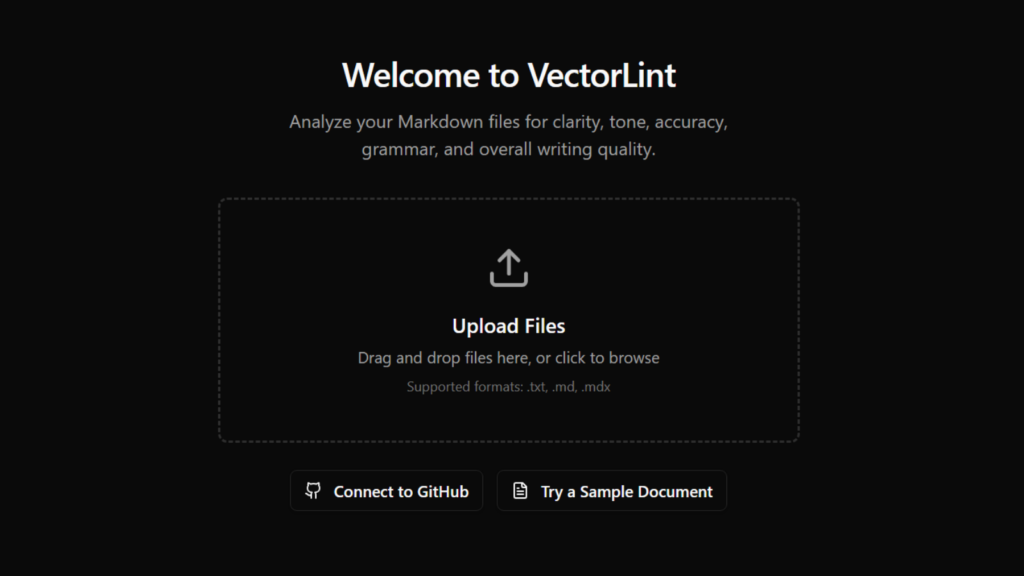
    Sign up and start adding your markdown files immediately. You can upload from your device, paste content directly, or drag and drop. VectorLint accepts .md, .mdx, and .txt files.
    Audit and Fix Issues

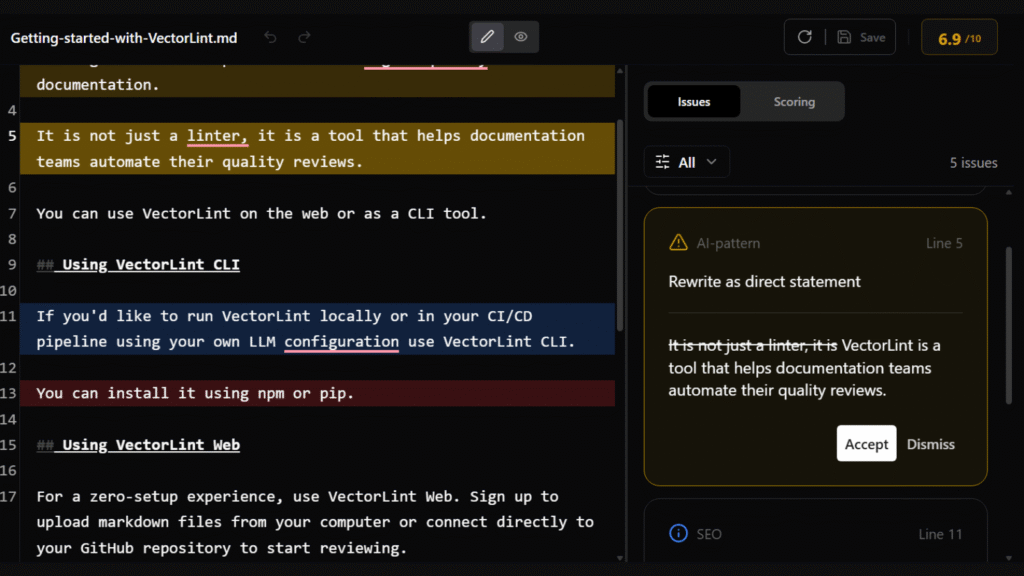
    Once you’ve added your files, you can run an audit, and VectorLint returns a quality score along with a detailed breakdown of every issue found. The breakdown includes the issue type (e.g., Readability, Accuracy), the severity level, the exact line it applies to, a clear explanation, and a suggested fix. You can accept or dismiss the suggestion.
    Rules

    VectorLint gives you full control over the quality checks applied to your documentation. Your rules are written in plain English. There is no regex, no config files, and no special syntax to learn.

    We’ve made it easy to define your standards using these three features:

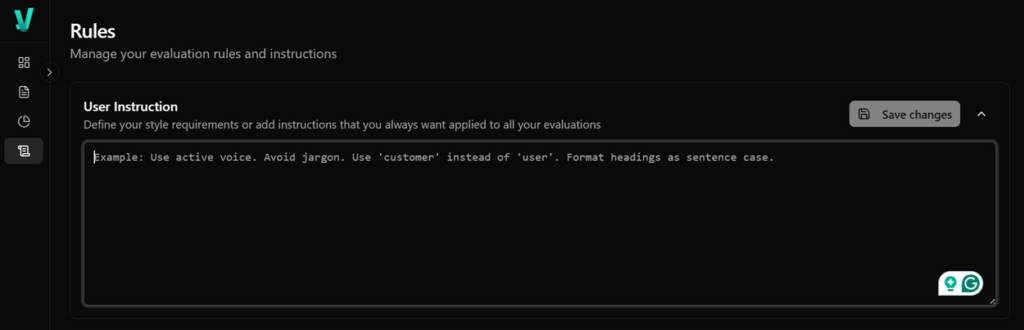
    Style Instructions

    Your style instructions are a set of requirements you want applied to every evaluation, across all your files. You can have your full style guide here, or just the key preferences you want consistently enforced.
    Built-in Rules

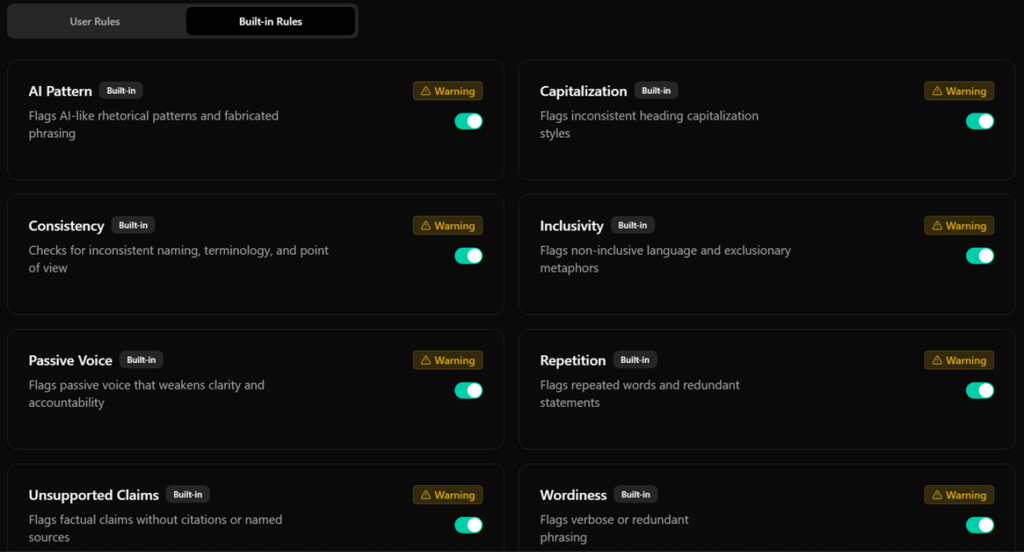
    VectorLint comes with preset rules targeting common documentation issues to get you started.
    User Rules

    You can add custom rules to enforce requirements specific to your team.

    Dashboard

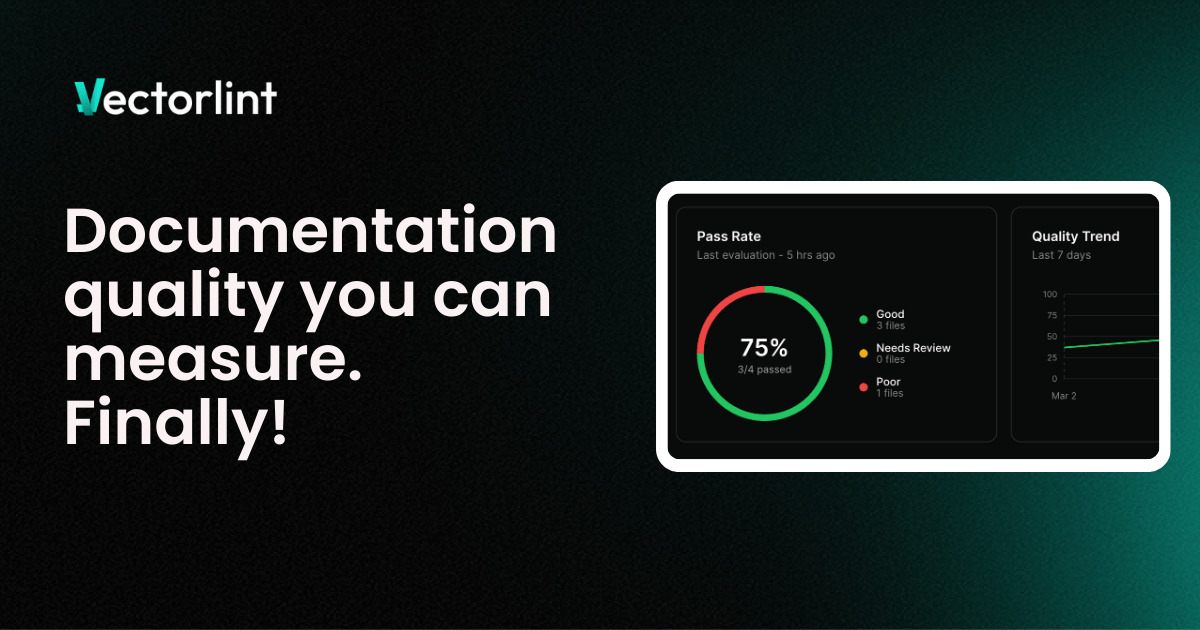
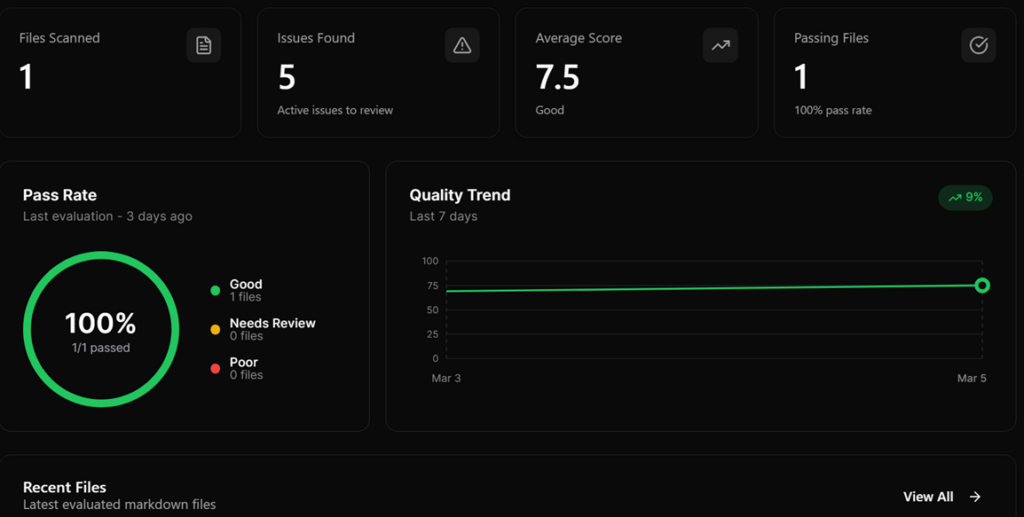
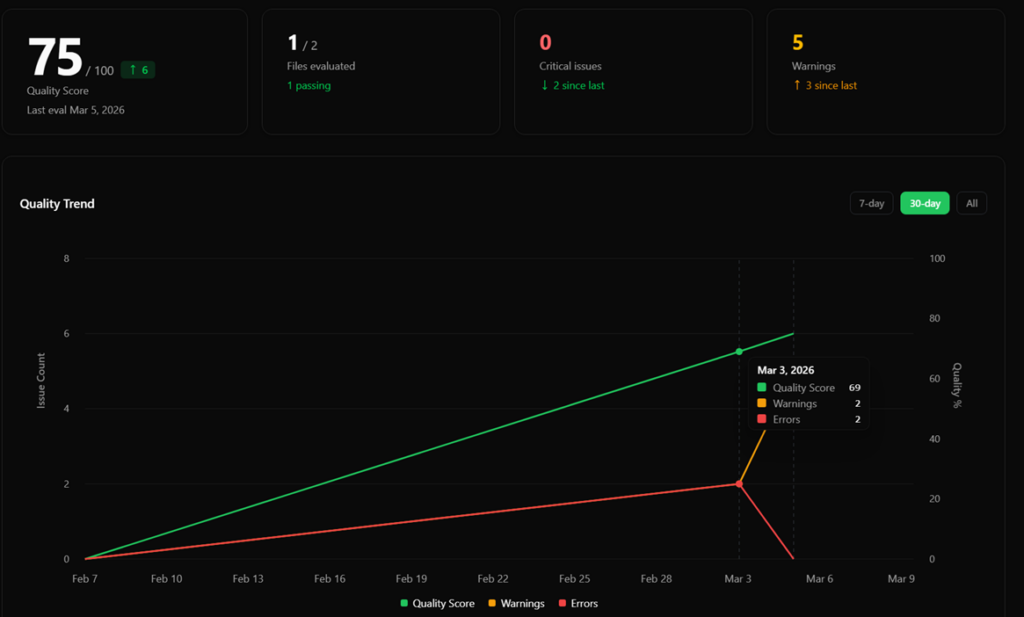
    The Dashboard shows your documentation health at a glance. You’ll see your pass rate, divided into Good, Needs Review, and Poor, and a quality trend chart tracking your progress over the last week.
    Quality Reports

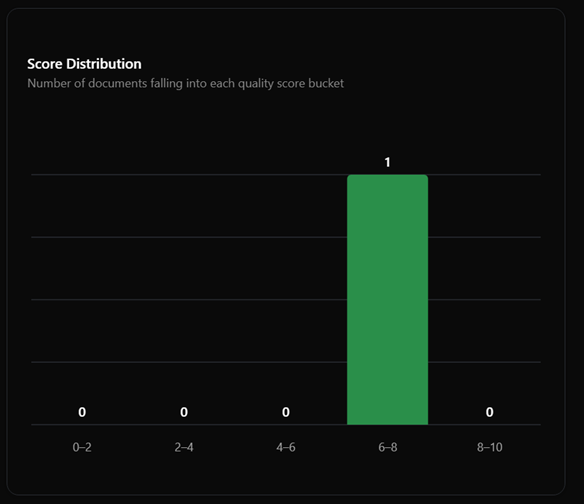
    The Reports page is where you’ll find the big picture. It shows your documentation quality trend over time, with detailed stats for your quality score, the number of files evaluated, and issue counts.

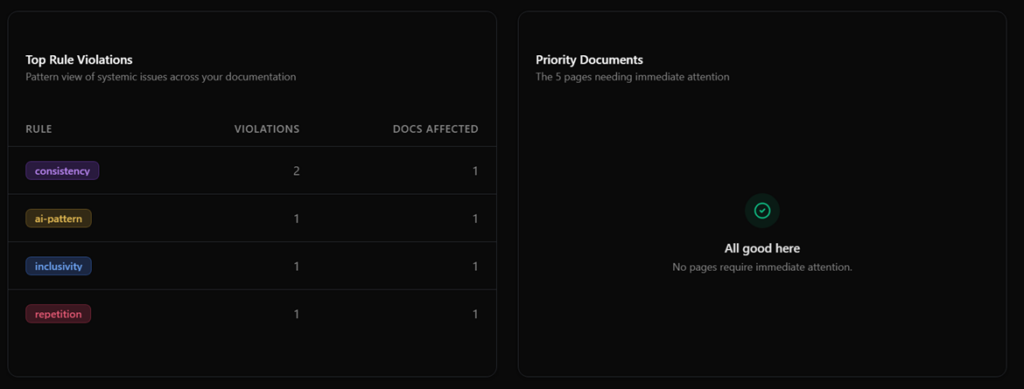
    You can also spot patterns with the Top Rule Violations table and see which pages need immediate attention in the Priority Documents list.
    What’s Coming Next?

    We’re shipping fast. Here’s what’s already in the pipeline:

    GitHub Integration — Connect your repositories and run quality audits automatically on every pull request. VectorLint will post results directly as PR comments and check runs. Your documentation gets reviewed alongside your code.

    Try It Today

    We built VectorLint because we believe documentation deserves the same automated quality standards as code. Sign up, add a file, and see your quality score in seconds.

    Get started now →

  • Using VectorLint to Catch AI Content Patterns in Docs as Code

    Using VectorLint to Catch AI Content Patterns in Docs as Code

    When you use AI to draft documentation, whether tutorials, guides, or API references, you save hours of writing time.

    The problem is that AI-generated content often contains AI patterns that could erode developer trust:

    “It’s important to note that…”
    “In the landscape of software development…”
    “This isn’t just X; it’s Y.”

    Even when your content is technically accurate, these patterns make it sound lazy.

    You could manually review every piece of content to catch these patterns, or you could automate your review process to catch them instantly.

    This guide shows you how to use VectorLint to automatically check for AI patterns in your Docs as Code workflow.

    VectorLint, AI-Assisted Editing

    VectorLint is an AI-powered prose linter that enables natural-language standard enforcement.

    It uses LLM-as-a-Judge to evaluate content and catch quality issues, making it possible to catch issues like terminology and spelling errors that only require pattern matching, and also those that require contextual understanding, such as AI patterns, Search Engine Optimization (SEO) problems, and technical accuracy.

    As a command-line tool, it runs in CI/CD pipelines, enabling a shared quality gate across your teams, preventing errors from reaching production.

    To get started, install VectorLint on your computer.

    Installing VectorLint

    1. Install VectorLint: To install VectorLint globally, run:
       npm install -g vectorlint

    Verify installation:

       vectorlint --version

    Alternatively, you can run it directly using npx:

       npx vectorlint

    Configuration

    Before you can review content with VectorLint, you need to connect it to an LLM provider.

    1. Initialize VectorLint: Run the initialization command to generate your configuration files:
       vectorlint init

    This creates two files, .vectorlint.ini which contains project-specific settings
    and ~/.vectorlint/config.toml where you configure your LLM provider settings.

       # VectorLint Configuration
       # Global settings
       RulesPath=
       Concurrency=4
       DefaultSeverity=warning
    
       # Default rules for all markdown files
       [**/*.md]
       RunRules=VectorLint

    This configuration tells VectorLint to check all Markdown files using the bundled VectorLint preset.

    1. Configure your API keys: Open your global config file (~/.vectorlint/config.toml) and uncomment the section for your preferred LLM provider. VectorLint supports OpenAI, Anthropic, Google, and Azure models.
       # --- Option 1: OpenAI (Standard) ---
       # LLM_PROVIDER = "openai"
       # OPENAI_API_KEY = "sk-..."
       # OPENAI_MODEL = "gpt-4o"
       # OPENAI_TEMPERATURE = "0.2"
    
       # --- Option 2: Azure OpenAI ---
       # LLM_PROVIDER = "azure-openai"
       # AZURE_OPENAI_API_KEY = "your-api-key-here"
       # ...
    
       # --- Option 3: Anthropic Claude ---
       # LLM_PROVIDER = "anthropic"
       # ANTHROPIC_API_KEY = "your-anthropic-api-key-here"
       # ...
    
       # --- Option 4: Google Gemini ---
       # LLM_PROVIDER = "gemini"
       # GEMINI_API_KEY = "your-gemini-api-key-here"
       # ...

    Uncomment your preferred provider and add your API key. See the configuration guide for full details.

    1. Create a test file: Create docs/getting-started.md with some content containing AI patterns:
       # Getting Started
    
       In the world of software development, getting started with any new tool can be daunting.
    
       This guide is not just a tutorial; it is a comprehensive resource for developers.
    1. Configure AI pattern detection: VectorLint comes bundled with a VectorLint preset that includes AI pattern detection rules. The init command automatically configures this in your .vectorlint.ini file. The VectorLint preset includes these rules: AI-Pattern, Directness, PseudoAdvice, and Repetition. Rules in rule packs are automatically enabled unless explicitly turned off. For this guide, you only need the AI-Pattern rule, so turn off the others in your .vectorlint.ini:
       [VectorLint]
       Directness = disabled
       PseudoAdvice = disabled
       Repetition = disabled

    Running Your First VectorLint Check

    To run VectorLint on a file, use the command:

    vectorlint docs/getting-started.md

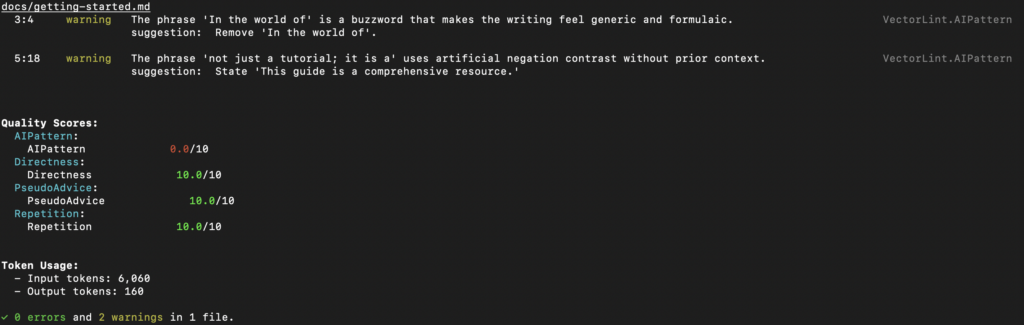
    VectorLint should output a quality report in your terminal:

    Adding VectorLint to Your CI/CD Pipeline

    Integrate VectorLint into your GitHub Actions workflow to automatically check documentation on every pull request.

    To add VectorLint to your CI/CD pipeline, create .github/workflows/lint-docs.yml:

    name: Lint Documentation
    on: [pull_request]
    
    jobs:
      vectorlint:
        runs-on: ubuntu-latest
        env:
          OPENAI_API_KEY: ${{ secrets.OPENAI_API_KEY }}
        steps:
          - uses: actions/checkout@v3
    
          - name: Setup Node
            uses: actions/setup-node@v3
            with:
              node-version: '18'
    
          - name: Run VectorLint
            run: npx vectorlint docs/*.md

    This workflow runs VectorLint on every pull request, checking all modified Markdown files against your quality rules. If VectorLint finds quality issues, the build fails, and the quality report appears in the PR comments.

    Next Steps

    You’ve now automated the detection of excessive hedging in your documentation. But there are more AI patterns worth catching:

    Expand your rule pack:

    • Define rules that match your company’s style guide
    • Share your rule packs across repositories
    • Use VectorLint scores as a metric for documentation quality

    By creating more rules, you can automate more quality checks and save time on content review. This helps you keep up with development velocity while maintaining the quality and trust your brand depends on.

  • You Need an AI Prose Linter in Your Docs as Code Workflow

    You Need an AI Prose Linter in Your Docs as Code Workflow

    With LLMs now capable of creating and reviewing content at scale, your Docs as Code workflow is incomplete without an AI prose linter.

    Although traditional prose linters can catch many errors, their syntactic approach means they can’t catch errors that require contextual judgment.

    To solve this problem, many teams use LLM-powered apps like ChatGPT or Claude. However, this remains outside the team’s shared automated testing workflow, resulting in inconsistent quality.

    These apps aren’t tuned for consistent evaluations, and different team members use different prompts and processes. Even with a shared prompt library, you’re still relying on each contributor to use it correctly.

    An AI prose linter solves this by providing AI reviews and suggestions in your Docs-as-Code workflow. You can achieve reliable automated quality checks by setting the LLM to low temperatures, using structured prompts, and configuring severity levels.

    Making AI Prose Linters Reliable With Severity Levels

    AI prose linters inherit the non-determinism of their underlying technology, which means they will occasionally generate false positives.

    Because the whole point of a CI pipeline is to deliver reliable builds, this is a bad recipe for your pipeline. The solution is to configure them as non-blocking checks that highlight potential issues and suggest fixes without failing your build.

    Just like traditional prose linters aren’t perfect, AI prose linters don’t need to be either.

    Even if you get 50% accuracy on quality flags, you’d be saving half the time you’d otherwise spend hunting for them yourself.

    With that out of the way, here are four reasons you should adopt an AI prose linter in your Docs as Code workflow.

    1. It Reduces Time Spent on Reviews

    AI prose linters reduce the time spent on manual content reviews by catching contextual issues that typically require human judgment.

    While traditional prose linters can catch terminology and consistency issues, the bulk of review time is typically spent on editorial feedback. This involves identifying issues that require contextual judgment, such as whether there is repetition of concepts across sections or if content directly answers the reader’s question.

    By codifying these editorial standards into AI prose linter instructions, you can catch these issues locally or in the CI pipeline, and get suggested fixes. This reduces the mental load on reviewers and saves time.

    2. It Enables Broader Team Contribution

    AI prose linting enables developers, engineers, and product managers to contribute high-quality documentation by providing them with immediate, expert-level editorial feedback as they write.

    Technical writers are often stretched, with some teams operating at a 200:1 developer-to-writer ratio. To get documentation up to date promptly, non-writers often need to contribute. While you can save a lot of time with traditional linters catching typos and broken links, you can make contributing even easier by using AI prose linting.

    Not only does it broaden the scope of issues you catch, but it also helps contributors learn the reason behind the flags and provides them with suggestions to fix them, making them more confident in their contributions.

    3. It Lowers the Barrier to Docs as Code

    Teams who don’t have a dedicated documentation engineer often refrain from adopting a Docs as Code workflow because of its maintenance overhead. It often requires an ongoing effort to create and maintain rules as the team creates more content.

    While traditional linters often have preset style rules that you can start with, you’ll still need to maintain them to deal with false positives that block merges, or to catch new issues that come up.

    AI prose linters solve this problem by using natural language instructions to define rules. This enables you to catch a wide range of issues with fewer instructions, reducing the maintenance overhead.

    For instance, if you wanted to catch hedging language using Vale, you’d need to write a regular expression covering as many variations as you can think of such as `appears to`, `seems like`, `mostly`, `I think`, `sort of`, etc.

    With an AI prose linter, you can simply write:

    `Check for any phrase that connotes uncertainty or lack of confidence (for example, “appears to”, “seems like”)`

    And it can catch variations you never thought to list.

    The trade-off is that natural language tends to leave room for edge cases, and so without precise instruction, you can get false positives. However, the cost of maintaining a wide library of rules or trying to envisage every edge case far outweighs the cost of filtering out false positives.

    4. It Accelerates Productivity For Solo Writers

    To achieve high-quality, error-free content, solo writers still have to review their own work. However, the biggest hurdle isn’t a lack of skill; it’s the human factor. When you’re the only person writing and editing thousands of lines of documentation, you lose the “fresh eyes” benefit that teams take for granted.

    After the fifth hour of editing a technical guide, fatigue sets in, making it easy to miss quality issues. An AI prose linter serves as a peer reviewer, turning the review process into simple “yes” or “no” decisions.

    The AI highlights the issues, and you decide whether they’re valid quality issues or not. This is less mentally taxing and faster than if you had to find the issues yourself.

    Knowing you have an automated editorial pass gives you confidence, allowing you to focus on providing value rather than worrying if you’ve missed a subtle stylistic error.

    Using VectorLint, an Open Source AI Prose Linter

    VectorLint is the first command-line AI prose linting tool.

    We built it to integrate with existing Docs-as-Code tooling, giving your team a shared, automated way to catch contextual quality issues alongside your traditional linters.

    You can define rules in Markdown to check for SEO optimization, AI-generated patterns, technical accuracy, or tone consistency, practically any quality standard you can describe objectively.

    Like Vale or other linters you already use, VectorLint runs in your terminal and CI/CD pipeline as part of your standard testing workflow.

    Check it out on Github